Unlock the phone
A locked phone hides its storage. Unlock it and look for a permission prompt.
Connection guide
Pick by what your phone allows. Automatic, the default, tries them in order of speed.
Open PortLine.dmg, drag PortLine to Applications, then open it from Applications. You can eject the disk image after copying.
| Connection | Best for | The phone needs | And |
|---|---|---|---|
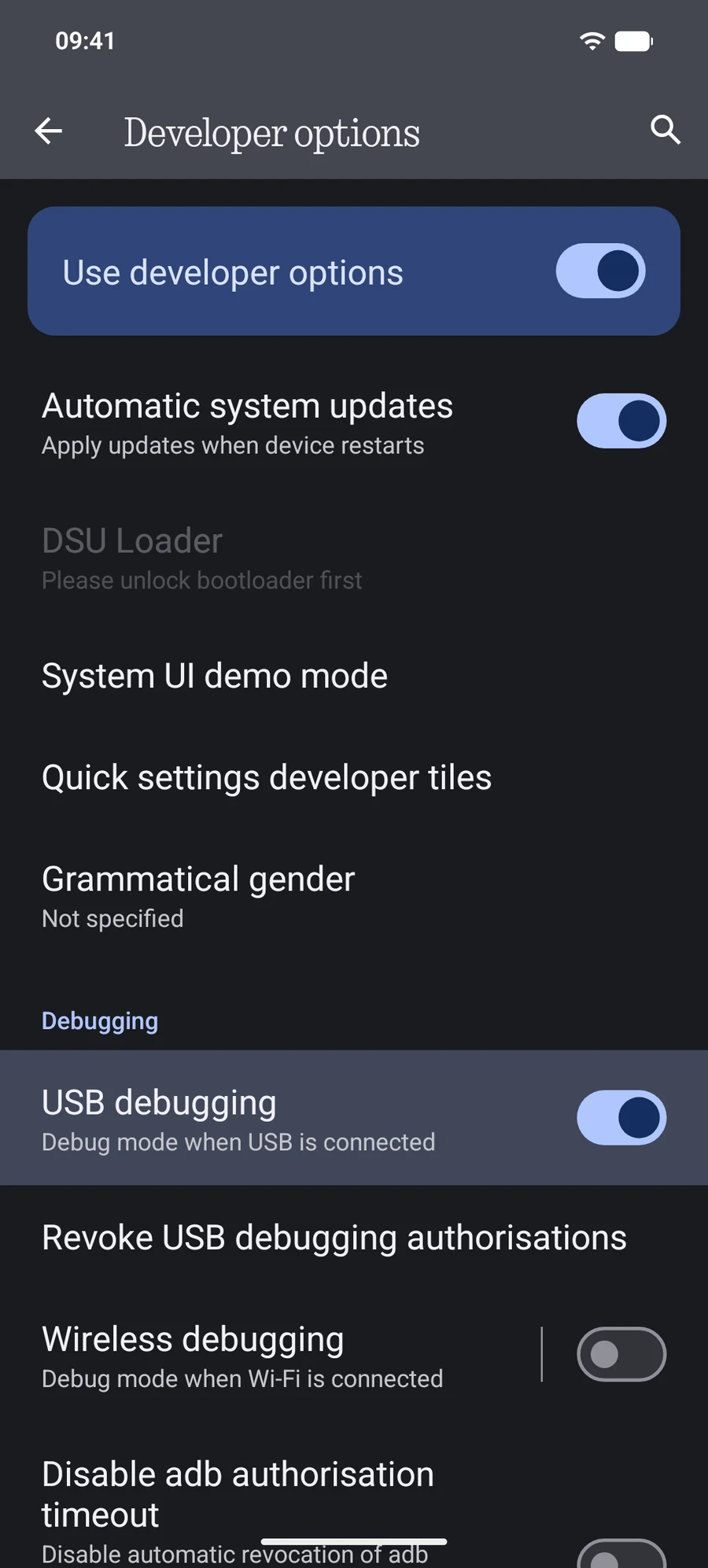
| Advanced USB | The fastest. Keeps Finder current within seconds. | USB debugging on, Android 8+ | Any data cable |
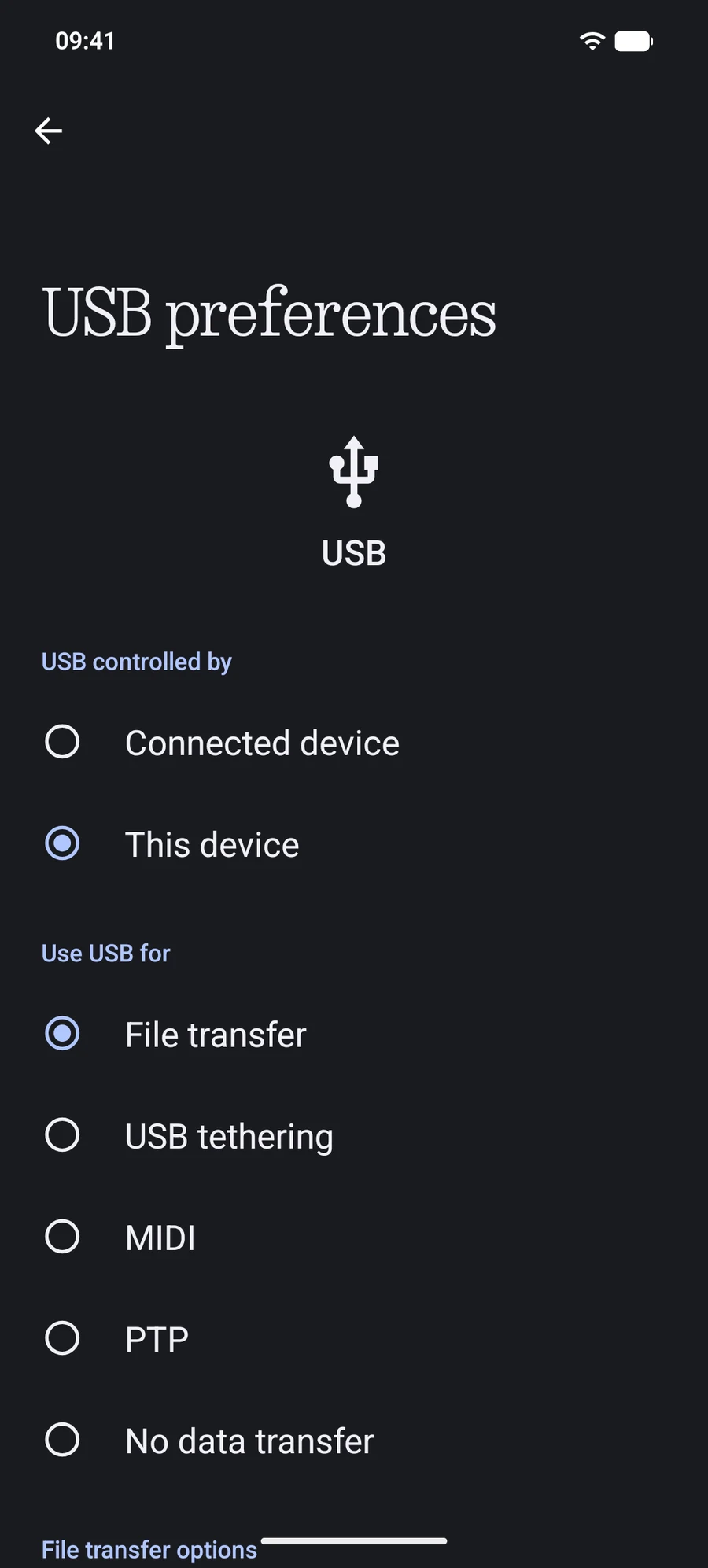
| Standard USB | Works with almost any phone, nothing to enable in developer settings. | File transfer (MTP) mode | Any data cable |
| Secure Wi-Fi | No cable. Encrypted pairing. | Wireless debugging, Android 11+ | Same local network |
Advanced USB
Standard USB
Secure Wi-Fi
Android 10 and older: Wireless debugging doesn't exist there. PortLine can set up the older Wi-Fi mode over USB first. It is not encrypted; use it on a private network you trust, and follow the app's Turn Off Wi-Fi step when you're done.
A locked phone hides its storage. Unlock it and look for a permission prompt.
Some charging cables carry no data. Try another cable or another port.
For Standard USB, the phone must be in File transfer mode, not Charging only.
For Advanced USB, the phone asks once to allow USB debugging. If you tapped Deny, revoke authorizations in Developer options and reconnect.
Only one program can hold the phone's USB connection. Quit other transfer tools, then click Refresh in PortLine.
For Wi-Fi, guest networks, VPNs and client isolation stop devices from finding each other.
Still stuck? Email the macOS version, Android version, phone model, connection and the exact message to [email protected].