Steps
- 1
Open Backups in PortLine
Choose Set Up Backup… and pick the folder on your Mac (or an external drive) to keep backups in.
- 2
Choose what to keep
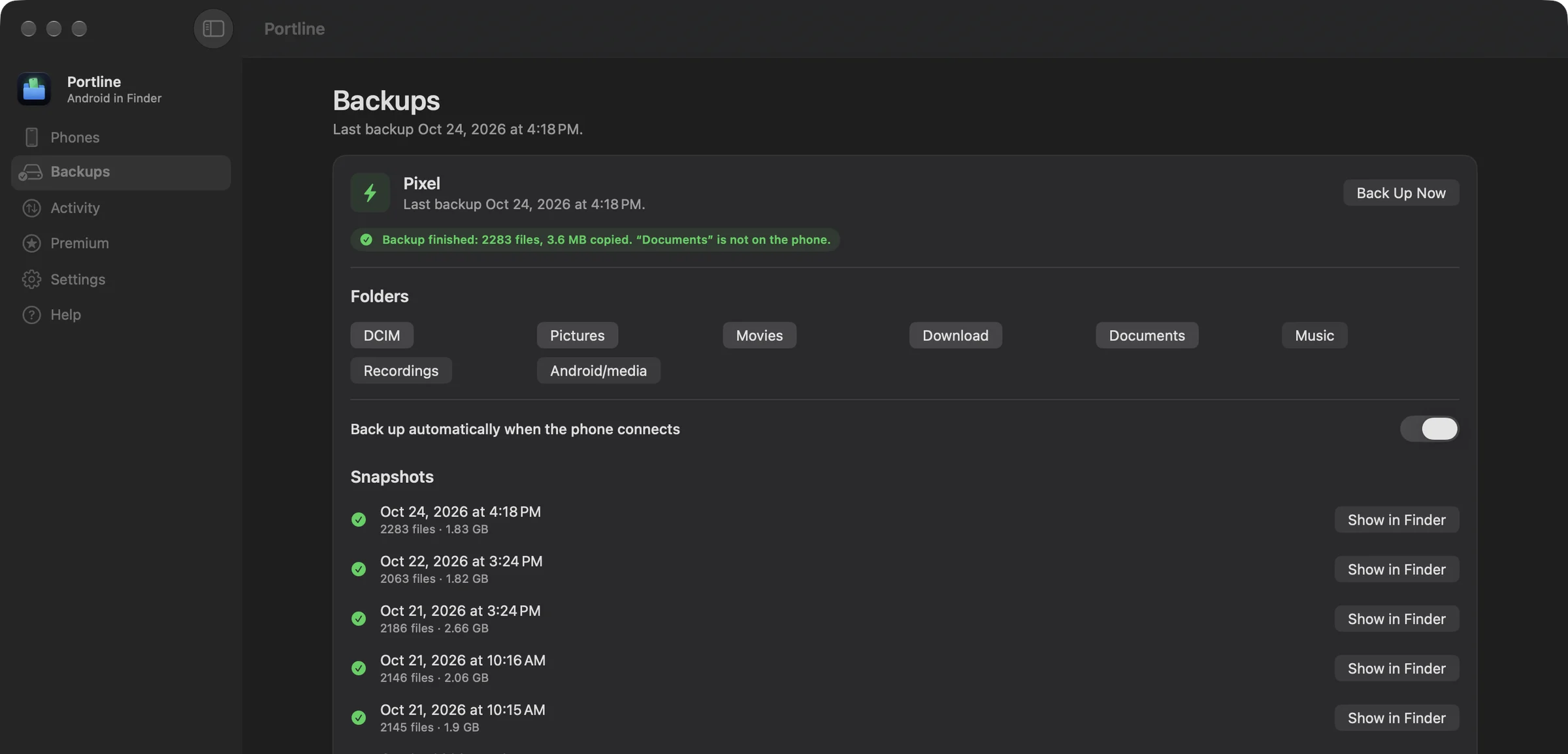
Pick the phone folders: DCIM, Pictures, Movies, Download, Documents, Music, Recordings and Android/media are offered.
- 3
Back up
Click Back Up Now, or turn on Back up automatically when the phone connects. Each backup appears under Snapshots with its number of files and size.
Space, checked first
Before a backup starts, PortLine checks the free space on the Mac against the space you asked it to keep. If there isn't enough, it says exactly how much more it needs instead of filling the disk.
Restoring
A snapshot is an ordinary folder. Click Show in Finder and drag what you need back to the phone (copying to the phone needs Premium), or open files directly on the Mac.
Questions
Does this back up apps and messages?
No. It copies files in the phone's shared storage: photos, videos, downloads, documents, music and recordings. App data and messages stay with Android's own backup.